
Android Utility Tool V200.01 Free Download Setup Latest Version [2027]
When your Android phone gets stuck in a boot loop, shows firmware errors, or needs a factory reset, repairing it is difficult without the right tool. Android Utility Tool is a Windows-based mobile repair and flashing tool. It is especially designed to help users and mobile technicians perform common Android servicing tasks. Android Utility Tool supports Android brands including Samsung, Huawei, and Xiaomi, as well as MediaTek, Qualcomm, UniSoC (SPD), and Kirin chipsets. Android Utility Tool features include firmware flashing, factory reset, FRP reset, boot repair, and other device maintenance tasks.
What is Android Utility Tool?
Android Utility Tool is a professional Windows-based software. It is designed to help users and Android technicians solve common Android problems. Android Utility Tool offers features such as firmware flashing, factory reset, FRP servicing, boot repair, and device maintenance. It supports Samsung, Huawei, and Xiaomi devices, as well as MediaTek, Qualcomm, UniSoC, and Kirin chipsets. It has a simple interface and is easier to use without technical knowledge.
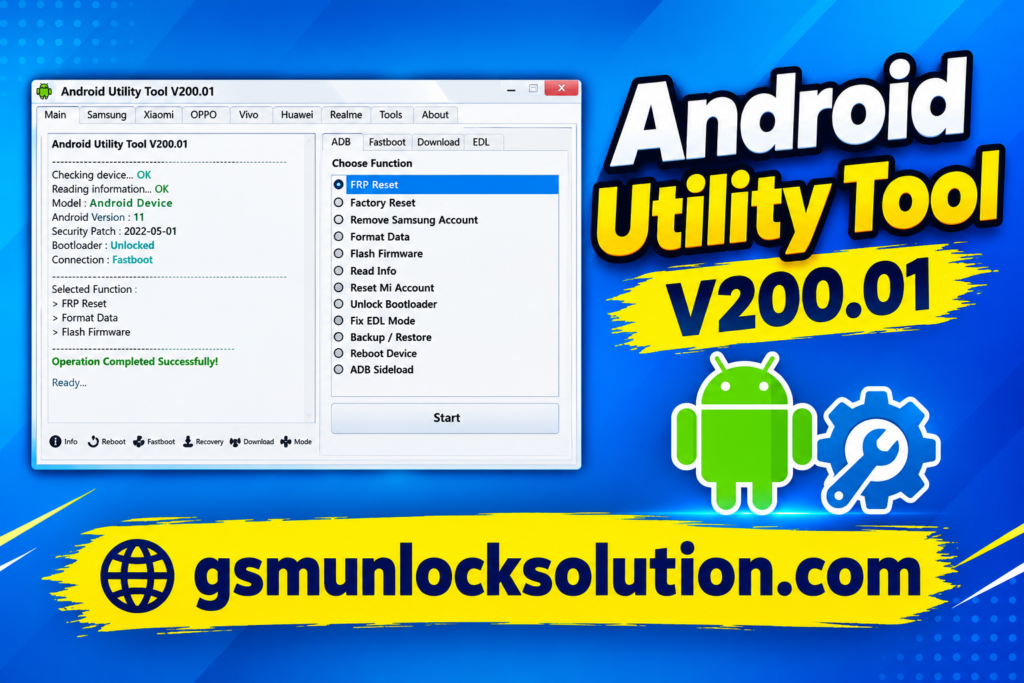
Main Functions Of Android Utility Tool
FRP Servicing
Provides FRP-related functions for supported Android devices. Availability depends on the phone model and software version.
Firmware Flashing
Helps install stock firmware on compatible devices to address certain software problems or restore the operating system.
Factory Reset
Allows users and technicians to perform a factory reset on supported devices when troubleshooting software issues. This process may erase user data.
Boot Repair
Offers selected repair functions for compatible devices experiencing boot loops or startup problems.
MediaTek Device Support
Includes servicing options for supported MediaTek (MTK) smartphones, with certain operations available through compatible connection modes.
Qualcomm Chipset Support
Provides selected maintenance and software servicing functions for compatible Qualcomm-powered Android devices.
UniSoC and Spreadtrum Support
Supports selected operations for compatible UniSoC (SPD) devices, depending on the model and tool version.
Samsung, Xiaomi, and Huawei Support
Works with selected devices from these brands. Available functions vary according to the device and chipset.
META Mode Operations
Includes specific utilities for compatible MediaTek devices connected through META mode.
Device Information
Helps identify certain details about a connected device, making it easier to select the appropriate servicing function.
Offline Operation
The offline version can run without an internet connection for supported functions, so users do not need to stay online while using it.
Simple User Interface
Provides an accessible interface for mobile technicians and users to find available functions and perform supported tasks.
What’s New in Android Utility Tool?
- Offline Support: Use Android Utility Tool without an internet connection.
- Bug Fixes: Fixes selected issues found in previous versions.
- Motorola UniSoC Boot Repair: Includes a reported fix for boot repair on supported devices.
- Samsung Force BROM: Addresses a previously reported issue with this function.
- SPD BROM Improvements: Fixes selected issues related to SPD BROM operations.
- Tablet Formatting Fixes: Includes fixes for certain tablet formatting issues.
- No Major New Features: The offline build mainly focuses on bug fixes rather than adding new functions.
- Future Updates: This is not the final release, so check for newer versions and changelog updates.
Pros and Cons
Pros
- Supports multiple Android brands and chipsets.
- Offers firmware flashing and factory reset functions.
- Includes FRP servicing and boot repair options.
- Offline version works without an internet connection.
- Supports selected MediaTek, Qualcomm, and UniSoC devices.
- Simple interface for mobile technicians.
Cons
- Some features work only on supported devices.
- Requires compatible USB drivers for proper connection.
- Certain functions need technical knowledge.
- Incorrect firmware may cause software problems or data loss.
- Device support and features may vary by version.
- Not all functions are available in the offline build.
System Requirements
| System Requirements | Details |
| Operating System | Windows 7, 8, 10, or 11 |
| RAM | 4 GB |
| Processor | Intel or AMD |
| Storage | At least 1 GB of free space |
| USB Connection | USB cable and working USB port |
| USB Drivers | Compatible Android USB drivers |
| Internet | Not required for the offline version |
Download Information
| File Information | Details |
| File Version | V200.01 |
| File Size | 194.6 MB |
| File Type | Compressed ZIP / RAR |
| Extraction Tool | 7-Zip or WinRAR |
Looking for another useful tool: ASUS Flash Tool v3.2.10 Free Download Setup for Windows [2027]
How to download the Android Utility Tool?
- Visit the download section on this official website to find the Android Utility Tool.
- Click the download button to download the ZIP package to your computer.
- Once the download is complete, extract the ZIP file using WinRAR or 7-Zip.
- Open the extracted folder and look for the tool’s executable file.
- Install the required USB drivers if they are included in the package and not already installed.
- Run the tool and connect your supported Android device using a USB cable.
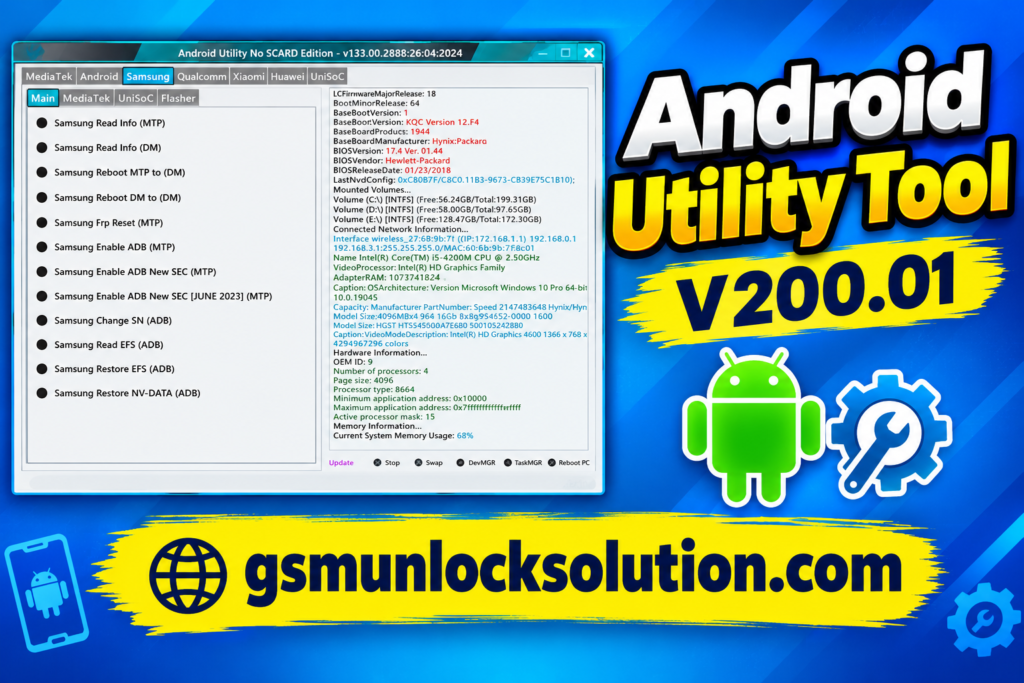
Conclusion
Android Utility Tool is a useful Windows software for mobile technicians and users who need to perform common Android servicing tasks. It supports selected Samsung, Huawei, and Xiaomi devices, as well as MediaTek, Qualcomm, and UniSoC chipsets. This tool provides features such as firmware flashing, factory reset, FRP servicing, and boot repair. Its offline version is helpful for users who want to work without an internet connection. This tool support multi brands servicing tool.
FAQ’s
Is Android Utility Tool free to download?
The tool is available from third-party websites as a free download. Check the source and version details before downloading.
Does Android Utility Tool work offline?
Yes, the Android Utility Tool offline build is designed to work without an internet connection or mandatory online updates.
Can Android Utility Tool fix boot loop problems?
It offers selected boot repair and software servicing functions that may help resolve boot loops on supported devices. Success depends on the cause of the problem.
Does Android Utility Tool require USB drivers?
Yes, compatible USB drivers may be required for the computer to detect your phone correctly. The required driver depends on the device brand and chipset.
Does using Android Utility Tool erase phone data?
Some operations, such as factory reset and formatting, can erase personal data. Back up important files before starting any repair process.



One Comment